Add a game
Video coming soonAdding your games to the schedule
You can add the whole season at once, or one game at a time. The same screen is used in guided setup and from the Schedule tab.
Open the screen
Section titled “Open the screen”- Open your team. You are on the Schedule tab.
- Tap + Add game near the top.
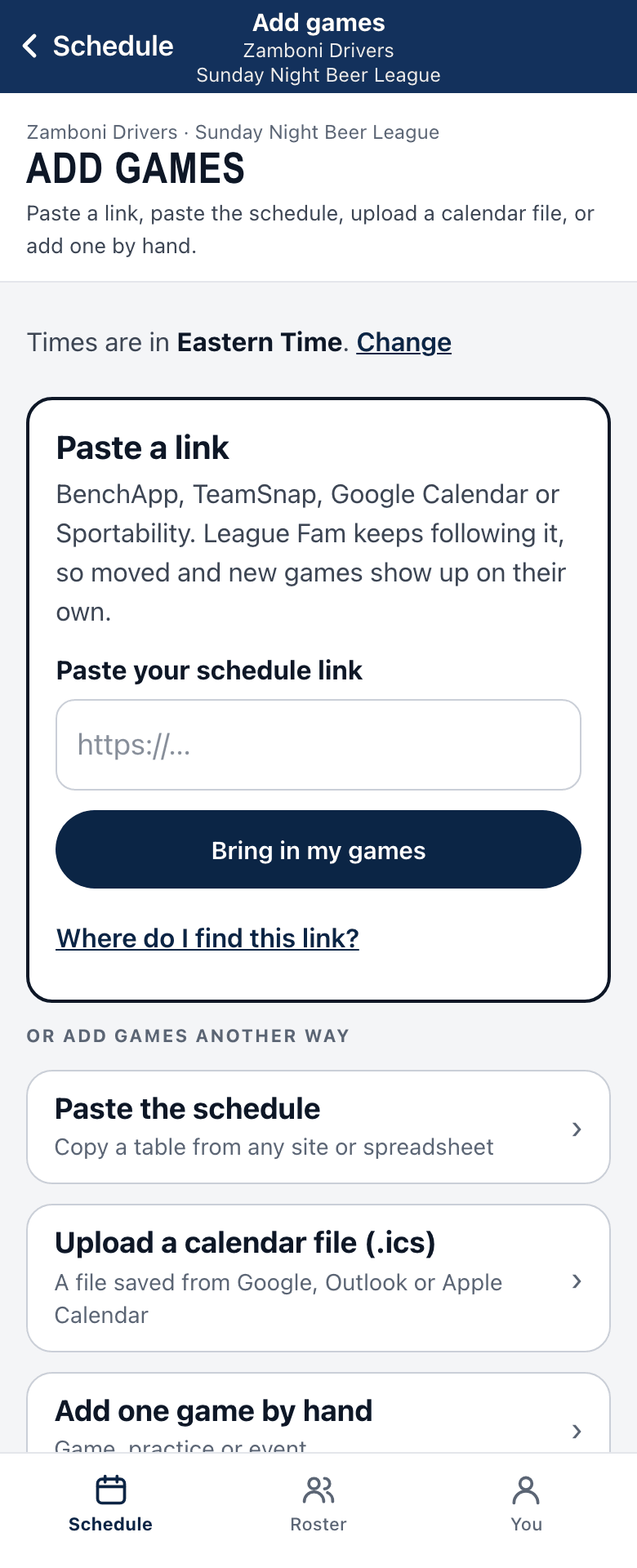
Way 1: paste a link (fastest)
Section titled “Way 1: paste a link (fastest)”If your league or app already has your schedule online, this is the one.
- Copy the schedule link from that site. Not sure where it is? Tap Where do I find this link? for short directions.
- Paste it into Paste your schedule link.
- Tap Bring in my games.
- Check the games it found, then tap the button to add them.
The team keeps following that link. When the league changes a game, your schedule changes with it. Answers people already gave are kept when a game moves.
Way 2: paste the schedule
Section titled “Way 2: paste the schedule”If the link does not work, copy the schedule text from the page and paste it into Paste the schedule. Pick your team, check the preview, untick anything wrong, and add. Nothing is saved until you tap the button.
Way 3: upload a calendar file
Section titled “Way 3: upload a calendar file”Have a calendar file (it ends in .ics)? Upload it instead.
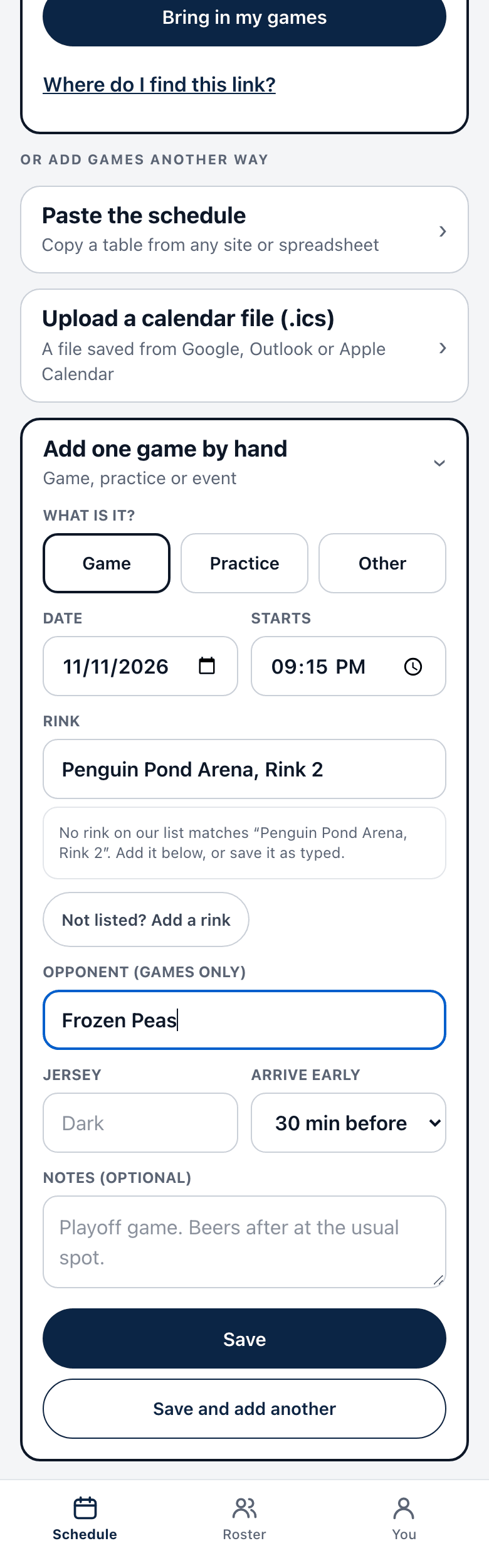
Way 4: add one by hand
Section titled “Way 4: add one by hand”- Choose what it is: Game, Practice or Other.
- Fill in the Date and Starts time. For a game, add the Opponent.
- Tap Save. Have more to add? Tap Save and add another. It keeps the form open for next week.
Good to know
Section titled “Good to know”- A game that comes from a followed calendar cannot be deleted, because it would come back. Use Cancel game instead. Players see it as cancelled.
- Adding the same schedule twice does not make copies.